Reference QuickTime & Burn-Ins
A reference QuickTime is the finishing suite’s ground truth. It is used to verify the conformed timeline matches the locked picture — every edit, every speed change, every title, every effect. A well-built reference file prevents hundreds of small conform errors from making it into the final grade.
Reference QT Specifications
| Attribute | Value |
|---|---|
| Codec | ProRes 422 LT or ProRes 422 (standard) |
| Resolution | Full sequence resolution |
| Frame rate | Match sequence exactly |
| Color space | Rec.709 is standard for reference; flag if delivering in HDR |
| Audio | Embedded stereo mix |
| Timecode | Visible burn-ins (see layout below) |
| Duration | Entire locked sequence including slate, leader, pops, and tail |
Why not ProRes Proxy? Proxy is adequate for offline review but too compressed for confidence-checking against a conformed grade. Fine details in the compression can mask real conform issues. Use LT or 422 standard instead.
Burn-In Layout
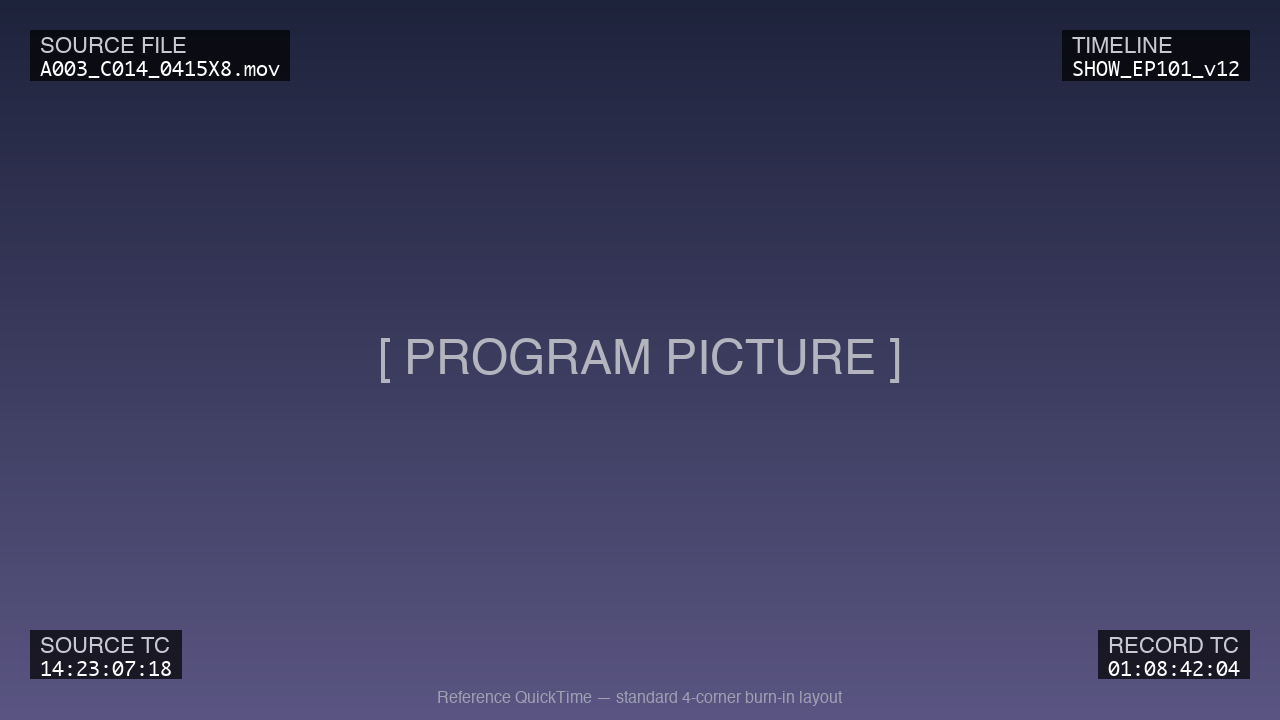
The four corners of the reference QT carry different timecode and metadata information. This is the industry-standard layout:
┌─────────────────────────────────────────────────────────────┐
│ [Source Filename]                        [Timeline Name]    │
│                                                             │
│                                                             │
│                                                             │
│                    [PROGRAM PICTURE]                        │
│                                                             │
│                                                             │
│                                                             │
│ [Source Timecode]                        [Record Timecode]  │
└─────────────────────────────────────────────────────────────┘| Corner | Content | Shows what |
|---|---|---|
| Top Left | Source filename | Which camera/archival clip is currently on screen |
| Top Right | Timeline / Sequence name | Which cut version this is from |
| Bottom Left | Source timecode | TC of the source clip at this moment |
| Bottom Right | Record / master timecode | TC position in the sequence |
All four pieces of information are necessary. The conformer uses source timecode + filename to verify each clip conforms correctly, and record timecode to navigate the timeline.
Burn-In Style
- Font — a clean sans-serif at readable size (roughly 2% of image height)
- Color — white text with a semi-opaque black background plate
- Opacity — ~75% so the burn-in is readable without obscuring the picture
- Safe area — keep within title-safe; do not cross into action-safe edges
Avid Media Composer: Adding Burn-In Overlays
Step 1: Open the Effect Palette
Tools → Effect Palette (or Cmd+8 / Ctrl+8).
Step 2: Apply the Timecode Burn-In Effect
- In the Effect Palette, navigate to Generator → Timecode Burn-In
- Drag the effect onto an empty video track above your sequence (if sequence uses V1–V3, place burn-ins on V4)
Step 3: Configure Each Corner
Double-click the effect in the timeline to open the Effect Editor. You have four position slots — configure them as follows:
| Slot | Display | Position |
|---|---|---|
| 1 | Source Name | Top Left |
| 2 | Source Timecode | Bottom Left |
| 3 | Sequence Name | Top Right |
| 4 | Master (record TC) | Bottom Right |
Step 4: Adjust Display Settings
- Font size — readable but not obtrusive
- Font color — white
- Background — enable background plate at ~75% opacity
- Style — sans-serif
Step 5: Render
Select the effect range in the timeline and render (Ctrl+R / Cmd+R).
Step 6: Export
Export the reference QT following the standard Exporting for Resolve instructions. Note that the burn-in track should not be included in the XML/AAF you send — it goes only with the reference QT.
Adobe Premiere Pro: Adding Burn-In Overlays
Premiere does not have a single four-corner burn-in effect, so you’ll layer multiple Timecode effects on a transparent video layer.
Step 1: Create a Transparent Video Layer
File → New → Transparent Video. Match resolution and frame rate to sequence. Drop the transparent video onto an empty track above your sequence (e.g. V4).
Step 2: Add Timecode Effect — Source Timecode (Bottom Left)
- Effects panel → Video Effects → Video → Timecode
- Drag onto the transparent video layer
- In Effect Controls:
- Timecode Source: Media (source)
- Position: move to bottom-left using X/Y offsets
- Size: set to desired readability
Step 3: Add Second Timecode Instance — Record Timecode (Bottom Right)
- Duplicate the Timecode effect (or add a new one)
- Set Timecode Source to Clip (or Sequence)
- Position: bottom-right
Step 4: Add Text for Source Name (Top Left)
The Timecode effect does not include filename. Use the Essential Graphics panel:
- Type tool → create text block top-left
- Bind the text to a source filename variable, or manually update per clip
- Alternative: use the Source Text expression in Essential Graphics
Step 5: Add Text for Sequence Name (Top Right)
- Essential Graphics text block in top-right
- Type the sequence name directly
Step 6: Customize
- Set text styles consistently
- Add semi-opaque background bars if needed for readability
- Render effects (
Enteror Sequence → Render Effects in Work Area)
Step 7: Export
Export the sequence with the burn-ins baked in.
Tip: Many editors use third-party Premiere extensions (e.g. BurnIn from various vendors) that add a proper four-corner burn-in generator in a single click. Worth exploring if reference QTs are a regular part of your workflow.
Final Cut Pro: Adding Burn-In Overlays
FCP’s Timecode generator only shows one timecode. For full four-corner burn-ins:
Step 1: Add Timecode Generator(s)
- Generators panel → Timecode (in the “Elements” category)
- Drag to a connected storyline above your project
- Position in bottom-right for Record TC (this is the default display)
Step 2: Duplicate for Source Timecode
- Duplicate the Timecode generator
- In Inspector → set Timecode field to reference source
- Position bottom-left
Step 3: Text Generators for Source Name & Sequence Name
- Titles → Custom text
- One in top-left for source filename (use
{source_name}placeholder if the plugin supports it) - One in top-right for timeline name
FCP limitations: FCP does not have a single built-in filename burn-in generator. The Alex 4 Pro plugin or similar third-party tools handle this better than stock FCP.
DaVinci Resolve: Adding Burn-In Overlays (for reference)
If reference QTs are being built in Resolve (rare on the turnover side, common on the delivery side):
Workspace → Data Burn-In window. Enable and configure:
- Source Name
- Source Timecode
- Record Timecode / Timeline Name
- Clip Number, or others as needed
Resolve’s Data Burn-In is the cleanest built-in option of any NLE for this purpose.
Verification Before Delivery
Before sending the reference QT with your turnover:
- All four corners show the expected information
- Source timecode changes per clip (verify on a few cuts)
- Record timecode runs continuously
- Burn-ins are readable over both light and dark content
- Audio is audible and in sync
- File plays from head slate through tail black without dropouts
- Filename matches the delivery naming convention