Markers
Markers are the single most effective way to pass information from the edit room to the finishing suite. A well-marked timeline tells the conformer what to pay attention to, what to fix, and what to leave alone — all without needing a separate notes document.
Why Use Markers?
- Precision — pinned to an exact timecode, not described in prose
- Travel — included automatically in XML / AAF / FCPXML exports
- Color-coded — scannable at a glance
- Searchable — most NLEs and Resolve let you filter by marker color
Standard Marker Color Legend
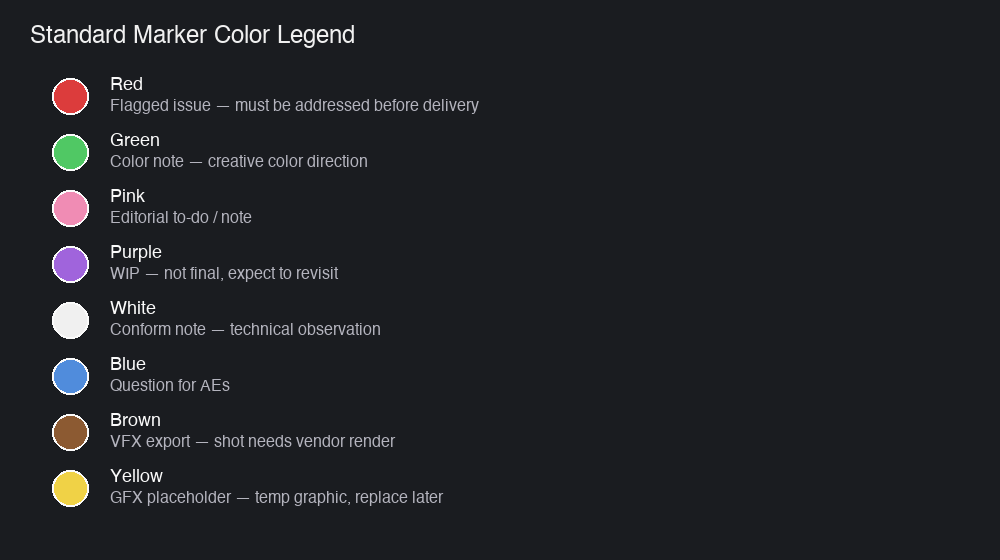
Use these colors consistently across every project. When every project uses the same palette, the conformer can spot issues instantly.
| Color | Meaning | Example Use |
|---|---|---|
| 🔴 Red | Flagged issue | Something is wrong and must be addressed before delivery |
| 🟢 Green | Color note | Creative color direction — “push this cooler”, “match to next shot” |
| 🩷 Pink | Note from editorial / to-do | General to-dos or observations from the edit room |
| 🟣 Purple | WIP / needs work | Not final, expect to revisit |
| ⚪ White | Conform notes | Technical conform observations — “thru edit at this frame” |
| 🔵 Blue | Questions for AEs | Needs assistant-editor research or clarification |
| 🟤 Brown | VFX export | VFX shot requires an export for a vendor |
| 🟡 Yellow | GFX placeholder | Temp graphic, needs final version |
Tip: Print this page and keep a copy near your bay. The colors become muscle memory within a show or two.
What to Mark
Markers are most useful for things that aren’t obvious from watching the timeline. Examples:
- Speed changes and ramps — document the intended speed behavior
- Stabilization needed / applied — flag handheld shots that need stabilization
- Freeze frames — note start frame and duration
- B&W or specific looks — “play this section desaturated”
- Compositions — mark split-screens, picture-in-picture, etc.
- Blurs and blocking — legal blurs on faces, license plates, logos
- VFX requests — what the shot needs (“beauty cleanup, frames 1120–1145”)
- Titles & graphics placeholders — flag NLE-built titles that need rebuilding
- Archival needs — license not cleared yet, or replacement required
- Audio-only notes — dialogue fix needed, music needs to duck
Marker Discipline
A handful of best practices:
- Keep markers concise — one line if possible, two max. Long notes belong in a separate document
- Use colors consistently — don’t invent new meanings mid-project
- Remove outdated markers — markers that are “done” should be deleted, not kept for history
- Mark the first frame of the issue — not somewhere “near” it
- For ranges, use marker duration — Avid and Premiere both support timed markers
Exporting Markers from Your NLE
Markers normally come through in the XML/AAF export automatically. But it’s often helpful to have a separate marker list as a CSV or text file for reference. Instructions per NLE:
Avid Media Composer
Step 1: Open the Markers Window
Tools → Markers (or Shift+Cmd+M on Mac).
Step 2: Select Markers
- To select all: click in the Markers window and press
Cmd+A/Ctrl+A - To select a subset: shift-click or cmd-click individual markers
Step 3: Export
- Click the hamburger menu (three lines, top-right) in the Markers window
- Choose Export Markers
- Choose format: Tab-delimited (.txt) or CSV (.csv)
Step 4: Review
Open in a spreadsheet app to verify. Keep a copy with your turnover package.
Adobe Premiere Pro
Step 1: Open the Markers Panel
Window → Markers.
Step 2: Select Markers
Click one, then Cmd+A / Ctrl+A to select all.
Step 3: Export
Right-click any selected marker → Export Markers → CSV file.
Step 4: Review
Open the CSV in Excel, Numbers, or Google Sheets.
Final Cut Pro
FCP does not have a built-in marker CSV export, but you can:
Option A: Manual Copy
- Open the Timeline Index (Cmd+Shift+2)
- Click the Tags tab
- Filter to Markers
- Select all markers (Cmd+A), copy (Cmd+C)
- Paste into a spreadsheet — timecodes and notes will come through
Option B: Third-Party Export
Tools like Marker Tool for FCP or 7toX can convert FCP markers into CSV or other formats.
Option C: Via FCPXML
FCPXML includes all marker data. A simple XSLT or script can extract markers from the FCPXML file if a CSV is truly needed.
DaVinci Resolve (destination, for reference)
When the XML/AAF lands in Resolve, markers typically appear on:
- The timeline ruler (timeline-level markers)
- Individual clips (clip-level markers)
In Resolve, markers can be exported via:
- Timeline → Markers → Export Markers (EDL format)
Marker Examples
Real-world marker text that works well:
| ✅ Good | ❌ Avoid |
|---|---|
| ”Stabilize: handheld, top 1/3 drift" | "fix this" |
| "Freeze frame: hold 30 frames from TCR 01:23:45:12" | "make it hold" |
| "VFX: remove boom mic from top of frame, shot 104" | "mic problem" |
| "GFX: rebuild LT in Resolve — font Avenir Next Bold" | "title" |
| "Thru edit — intentional, do not collapse" | "thru edit here" |
| "Archival offline — placeholder, final delivery pending" | "need footage” |
The difference is specificity. A good marker answers the question “what, where, how” so the conformer can act on it without a follow-up call.
Marker Pre-Flight
- Marker colors used follow the standard legend
- Markers placed on the first frame of each issue, not “near” it
- Marker text is concise — one or two lines max
- Outdated / resolved markers have been removed
- If exporting markers as CSV, the file accompanies the turnover package